Pages

Mediafire Movies,Games,Softwares,TV Show,Music, Download all the latest free mediafire movies DVDrip, BRrip, HDrip and also in small size high quality mkv format Media fire download links

Showing posts with label Tutorials. Show all posts
On

Get your Opda Symbian certificate To Sign Unsigned Applications And Themes

1. Get your certificate at http://cer.opda.cn/en/index.php?module=index
OPDA is the largest website provide certificate for you. You may have get your certificate as least about some hours and maximum about 1 day. The most importance, you need have a account there.

- Now you register new account.


- Go to this form and let you fill in all of fields, last Press "Submit and register" button.

- After register successful, you log-in and select "My Certificate"


- Now you will see your browser like me. Hit Apply cer


- The form of applying cer showing, you enter all informations required, and select "Submit application" button


- Report your work successful


- Then the system redirect you here automatically. You will see you be in location same this pic below. I think you understand it, Sate of your apply is now apllying, and you need wait till it's available


- After some hours later, you login again and select "My certificate" and you will see the State has changed to Normal meaning your certificate is available. Click to .cer, .key terms to download them.


1.1 - Sign applications with your .cer & .key files that you got.
- Go to here meaning you have got your certificate that your need to sign application. Now, you need setup this signed-tool on your PC - Its name is SignSIS-GUI. Download here or attachment below

After setup complete, open SignSis and do same below:
1. Press button 1 then locate to the path of .cer file
2. Press button 2 then locate to the path of .key file
3. Press button 3 then locate to the path of application file
4. Press SignSiS button - 4


- And a small pop-up window appear with "Successful signed!"


- OK. Now let you transfer the application file signed to your phone and install it.

On

Get your Opda Symbian certificate To Sign Unsigned Applications And Themes

1. Get your certificate at http://cer.opda.cn/en/index.php?module=index
OPDA is the largest website provide certificate for you. You may have get your certificate as least about some hours and maximum about 1 day. The most importance, you need have a account there.

- Now you register new account.


- Go to this form and let you fill in all of fields, last Press "Submit and register" button.

- After register successful, you log-in and select "My Certificate"


- Now you will see your browser like me. Hit Apply cer


- The form of applying cer showing, you enter all informations required, and select "Submit application" button


- Report your work successful


- Then the system redirect you here automatically. You will see you be in location same this pic below. I think you understand it, Sate of your apply is now apllying, and you need wait till it's available


- After some hours later, you login again and select "My certificate" and you will see the State has changed to Normal meaning your certificate is available. Click to .cer, .key terms to download them.


1.1 - Sign applications with your .cer & .key files that you got.
- Go to here meaning you have got your certificate that your need to sign application. Now, you need setup this signed-tool on your PC - Its name is SignSIS-GUI. Download here or attachment below

After setup complete, open SignSis and do same below:
1. Press button 1 then locate to the path of .cer file
2. Press button 2 then locate to the path of .key file
3. Press button 3 then locate to the path of application file
4. Press SignSiS button - 4


- And a small pop-up window appear with "Successful signed!"


- OK. Now let you transfer the application file signed to your phone and install it.

On

How to Copy/Paste with webOS Browser

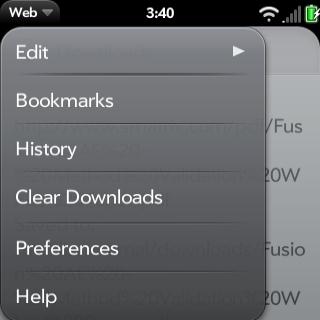
  Lots of people aren't aware of the fact that you can use the Copy/Paste command just about anywhere on your Palm Pre applications. That includes the webOS browser, which features a few ways to copy paste a link, a picture or webpage text.

The first thing you need to do before copy/paste a link is to get access to that URL, so you will need to scroll all the way to the top until the URL will pop down.

Then simply tap the top bar once and so the link will be highlighted in yellow. Simply copy/paste by using the button to the right from the gesture area until the middle trackball is highlighted, then press C.

Now the URL is copied on your clipboard, so the next thing you need to do is to go where you want to paste the link, press and hold the button to the right in the gesture area of the phone until the trackball is highlighted again, then press the V key.

A faster way to copy a link is to keep the orange button pressed and tap on the desired link. A quick menu will pop-up with three options: Open in new card, Share link, and Copy URL.

The same process can be applied if you want to copy a picture. Simply keep the orange button pressed and tap on the picture until a pop-up menu will be displayed on the screen with the following options: Open in new card, Share link, Copy URL, Share image, Copy to Photos.

To copy a certain text from a webpage is a little bit tricker, as webOS only allows you to copy entire paragraphs at a time and not just one word.

Simply hold the Shift key and select the paragraph/s you wish to copy, then click on the button in the gesture area until the trackball is highlighted and click the C key.

Then simply go to where you wish to paste the text, click on the same button in the gesture area and then on the V button.

Feel free to add more tips and tricks, especially if you're an advanced webOS user.

On

How to Copy/Paste with webOS Browser

  Lots of people aren't aware of the fact that you can use the Copy/Paste command just about anywhere on your Palm Pre applications. That includes the webOS browser, which features a few ways to copy paste a link, a picture or webpage text.

The first thing you need to do before copy/paste a link is to get access to that URL, so you will need to scroll all the way to the top until the URL will pop down.

Then simply tap the top bar once and so the link will be highlighted in yellow. Simply copy/paste by using the button to the right from the gesture area until the middle trackball is highlighted, then press C.

Now the URL is copied on your clipboard, so the next thing you need to do is to go where you want to paste the link, press and hold the button to the right in the gesture area of the phone until the trackball is highlighted again, then press the V key.

A faster way to copy a link is to keep the orange button pressed and tap on the desired link. A quick menu will pop-up with three options: Open in new card, Share link, and Copy URL.

The same process can be applied if you want to copy a picture. Simply keep the orange button pressed and tap on the picture until a pop-up menu will be displayed on the screen with the following options: Open in new card, Share link, Copy URL, Share image, Copy to Photos.

To copy a certain text from a webpage is a little bit tricker, as webOS only allows you to copy entire paragraphs at a time and not just one word.

Simply hold the Shift key and select the paragraph/s you wish to copy, then click on the button in the gesture area until the trackball is highlighted and click the C key.

Then simply go to where you wish to paste the text, click on the same button in the gesture area and then on the V button.

Feel free to add more tips and tricks, especially if you're an advanced webOS user.

On

How to Download and Save Gmail Attachments on the Memory Card
Saving an attachment that received through a Gmail account on a Samsung Galaxy S might be a mystery for a lot of users. If you're not a tech savvy and are not aware of all the features that the Android platform and Samsung Galaxy S can offer, here is a small tip on how you can save any kind of attachment.


Every document received through the Gmail account, it is automatically opened by the ThinkOffice application, either you're using the Gmail application or the Internet browser.

If your attachment is a document file compatible with ThinkOffice, after the attachment is opened through the application you can click in the menu on the File option and choose to save to the SD card.

It seems that within the Gmail application, the save feature is dependent on file type, so if you have a picture file as attachment instead of a document file, you can click Options and download or preview.

Most of the attachments can be downloaded by using the web browser, rather then the integrated Gmail application.

Still, the easiest way to download and save any kind of attachments on the SD card is to install a third-party file manager.

If you're not yet familiar with the Astro File Manager, then you should know that this one of the most popular file managers on the Android Market.

After installing the application, simply go to Preferences and select the option that enables browser download.

This option will enable users the ability to save any kind of attachment via Gmail application, so you won't need to use the web browser every time.

Some users are simply using the Gmail through their web browser thinking that this is the quickest way to save and download attachments on their SD cards.

Still, I believe that the Astro app is a mich better choice, as the third-party application can be used for other tasks too.

On

How to Download and Save Gmail Attachments on the Memory Card
Saving an attachment that received through a Gmail account on a Samsung Galaxy S might be a mystery for a lot of users. If you're not a tech savvy and are not aware of all the features that the Android platform and Samsung Galaxy S can offer, here is a small tip on how you can save any kind of attachment.


Every document received through the Gmail account, it is automatically opened by the ThinkOffice application, either you're using the Gmail application or the Internet browser.

If your attachment is a document file compatible with ThinkOffice, after the attachment is opened through the application you can click in the menu on the File option and choose to save to the SD card.

It seems that within the Gmail application, the save feature is dependent on file type, so if you have a picture file as attachment instead of a document file, you can click Options and download or preview.

Most of the attachments can be downloaded by using the web browser, rather then the integrated Gmail application.

Still, the easiest way to download and save any kind of attachments on the SD card is to install a third-party file manager.

If you're not yet familiar with the Astro File Manager, then you should know that this one of the most popular file managers on the Android Market.

After installing the application, simply go to Preferences and select the option that enables browser download.

This option will enable users the ability to save any kind of attachment via Gmail application, so you won't need to use the web browser every time.

Some users are simply using the Gmail through their web browser thinking that this is the quickest way to save and download attachments on their SD cards.

Still, I believe that the Astro app is a mich better choice, as the third-party application can be used for other tasks too.

On

How to Setup Yahoo Mail on Motorola DROID


After receiving the long awaited Android 2.2 Froyo software update, the critically-acclaimed Motorola DROID smartphone and one of the most popular Android devices in the US, was stripped by two of its useful features, the tethering ability, as well as the option to create Wi-Fi hotspots.


Further, if you own a Yahoo Mail account you are probably aware of the fact that you will be unable to check your email while using the Wi-Fi connection.

Basically, you will only be able to check your Yahoo account only when the smartphone is connected through the 3G data network.

For those of you that didn't manage to setup their Yahoo account yet, here is how you should do it.

The following guide assumes that you already have Yahoo Mail Plus service.

The first thing you need to do is to turn off Wi-Fi connection, so you can avoid eventual error messages and to be able to connect to the Yahoo account.

Then click on Email option, but not on the Gmail one, and enter your Yahoo login address. Select Manual Setup, and then select IMAP.

You will have to manually enter the following, under the IMAP server, imap.mail.yahoo.com.

Do not change anything else, as the port, as well as the other settings remain the same. Select Next and under SMTP enter the following, smtp.mobile.mail.yahoo.com.

Likewise, the port and other settings remain the same, so don't bother to change anything else.

Select Next and then select Account name and update settings. Congratulations, you have finished setting up your Yahoo mail account and you can start testing it.

As I have already mentioned above, Motorola DROID, as well as other Motorola Android smartphones (i.e. Motorola Devour) does not allow users to check their Yahoo mail accounts while the Wi-Fi connection is enabled.

This is a major issue that hasn't been fixed yet, and no viable explanations were received.

On

How to Setup Yahoo Mail on Motorola DROID


After receiving the long awaited Android 2.2 Froyo software update, the critically-acclaimed Motorola DROID smartphone and one of the most popular Android devices in the US, was stripped by two of its useful features, the tethering ability, as well as the option to create Wi-Fi hotspots.


Further, if you own a Yahoo Mail account you are probably aware of the fact that you will be unable to check your email while using the Wi-Fi connection.

Basically, you will only be able to check your Yahoo account only when the smartphone is connected through the 3G data network.

For those of you that didn't manage to setup their Yahoo account yet, here is how you should do it.

The following guide assumes that you already have Yahoo Mail Plus service.

The first thing you need to do is to turn off Wi-Fi connection, so you can avoid eventual error messages and to be able to connect to the Yahoo account.

Then click on Email option, but not on the Gmail one, and enter your Yahoo login address. Select Manual Setup, and then select IMAP.

You will have to manually enter the following, under the IMAP server, imap.mail.yahoo.com.

Do not change anything else, as the port, as well as the other settings remain the same. Select Next and under SMTP enter the following, smtp.mobile.mail.yahoo.com.

Likewise, the port and other settings remain the same, so don't bother to change anything else.

Select Next and then select Account name and update settings. Congratulations, you have finished setting up your Yahoo mail account and you can start testing it.

As I have already mentioned above, Motorola DROID, as well as other Motorola Android smartphones (i.e. Motorola Devour) does not allow users to check their Yahoo mail accounts while the Wi-Fi connection is enabled.

This is a major issue that hasn't been fixed yet, and no viable explanations were received.

On

If you ever tried downloading files via Megaupload then you know that Megaupload imposes a 45 second wait-timer for free users and this thing annoy us. But here we have found a trick for you by using that you can download files from megaupload instantly without waiting just like premium users.
Bypass Megaupload download waiting time
To complete the task all you need is Firefox browser, that’s all.
1. Visit the download file page as you normally do with any file download link.
2. Enter the the words as shown in famous Captcha and proceed as usual.
3. Now, waiting time has started and you have to go to View >> Page Style >> No Style
4. After selecting No Style, page will look something different and you can see the Regular download link to start your download instantly.
Let’s us know if you have any queries regarding to megaupload trick though comments…!

On

If you ever tried downloading files via Megaupload then you know that Megaupload imposes a 45 second wait-timer for free users and this thing annoy us. But here we have found a trick for you by using that you can download files from megaupload instantly without waiting just like premium users.
Bypass Megaupload download waiting time
To complete the task all you need is Firefox browser, that’s all.
1. Visit the download file page as you normally do with any file download link.
2. Enter the the words as shown in famous Captcha and proceed as usual.
3. Now, waiting time has started and you have to go to View >> Page Style >> No Style
4. After selecting No Style, page will look something different and you can see the Regular download link to start your download instantly.
Let’s us know if you have any queries regarding to megaupload trick though comments…!

On

Facebook e-mailIf you use Facebook, a popular social networking site, then you probably know that recently, Facebook started a new e-mailing service. This new emailing service also called as “Social Inbox”. If you know, how to create @facebook.com e-mail ID then this is Good but if don’t then no worry. After reading this post you will be able to create your own Facebook e-mail ID.
facebook.com E-Mail ID inbox
To create Facebook e-mail ID, You must have an Facebook invitation.

Procedure to Get @facebook.com e-mail ID or account:

  • First you should have a Facebook Username. If you don’t have it, get one here.
  • After having username you need to to apply for an invitation here. When your invitation is ready, Facebook will send you a notification.
  • After getting a notification, Facebook will guide you step by step to configure your Facebook Mail. You will have to configure your phone number so that your friends can send you a message directly to your phone.
  • After configuring all this your own Facebook Mail will be ready to use and you can send emails across any domains through your @facebook.com email id.

Benefits of @facebook.com E-mail ID or Account:

  • Your own personalized @facebook.com mail id.
  • Send and receive emails just like any other email service out there.
  • Facebook felt that there was no need for the subject line and people just used to fill it with “Hi” or “Hello” so they removed it.
  • No “Send” button press “Enter” and the message is sent. You have the option to toggle between having a send button or not. It’s entirely upon you.
  • Attach a file, a picture or a video from a webcam.
  • Receive emails on your phone free.
  • Now all your chatlogs will be saved in your Facebook Inbox.

On

Facebook is the most global popular social networking site on a web. So If you are a user then you probably know that Facebook has just announced the availability of HTTPS/SSL security for the site, to keep you protected from attacks like Firesheep and other harmful online activities.
Why should you enable HTTPS/SSL Feature on your Account?
Here is the positive answer, If you enable HTTPS mode, all the data beginning from the password you type at the login page would be encrypted when it travels between the browser and the Facebook server, offering a more sophisticated security for your stay on Facebook.
So you would like to use this service then below is procedure for,
How to Enable HTTPS on Facebook?
  1. Sign in to your Facebook account and go to Account -> Account Settings.
  2. Once you are on Account  Settings page, click on Account Security.
  3. Now you can see Secure browsing (https) option there. Check that option and save it.
Secure HTTPS in Facebook
Now your Facebook account will use HTTPS secured connection. Facebook team recommends that if you frequently use your account on public computers like cyber cafe then you must enable this feature but before you enable HTTPS you must keep one thing in mind that encrypted pages take longer to load and you may notice that Facebook is slower using HTTPS. Some third party applications may also not work which are currently not supported over secure connection

On

If you use any of the Apple Products, then you must have an Apple ID. Apple ID is a personalized identity account that allows you to access various Apple resources. Using your Apple ID (account) you can use Apple Online Store, iTunes Store, Concierge (for appointments at Genius Bar), Apple Online Support, iChat, iPhoto and Aperture Purchases and iWork Publishing services.
Apple ID or Account

Procedure to Create an Apple ID or Account:

1. Open Apple ID webpage on Apple.com website.
2. Then click ‘Create an Apple ID’ button to start the sign up process.
3. Then enter details in the form to complete Apple ID creation process. Enter your email ID that will be used as Apple ID for using Apple products. Also enter desired password for your Apple ID account.
4. Then select security question for Apple ID account. This may be required while recovering password for Apple ID account.
5. Also enter your name, date of birth, address and language details.
6. Then click Create Apple ID button at the bottom to submit form for creation of Apple ID.
7. You will receive confirmation email at the provided email address. Click on confirmation link in the email message to confirm your email ID and complete Apple ID creation process.

On

Facebook e-mailIf you use Facebook, a popular social networking site, then you probably know that recently, Facebook started a new e-mailing service. This new emailing service also called as “Social Inbox”. If you know, how to create @facebook.com e-mail ID then this is Good but if don’t then no worry. After reading this post you will be able to create your own Facebook e-mail ID.
facebook.com E-Mail ID inbox
To create Facebook e-mail ID, You must have an Facebook invitation.

Procedure to Get @facebook.com e-mail ID or account:

  • First you should have a Facebook Username. If you don’t have it, get one here.
  • After having username you need to to apply for an invitation here. When your invitation is ready, Facebook will send you a notification.
  • After getting a notification, Facebook will guide you step by step to configure your Facebook Mail. You will have to configure your phone number so that your friends can send you a message directly to your phone.
  • After configuring all this your own Facebook Mail will be ready to use and you can send emails across any domains through your @facebook.com email id.

Benefits of @facebook.com E-mail ID or Account:

  • Your own personalized @facebook.com mail id.
  • Send and receive emails just like any other email service out there.
  • Facebook felt that there was no need for the subject line and people just used to fill it with “Hi” or “Hello” so they removed it.
  • No “Send” button press “Enter” and the message is sent. You have the option to toggle between having a send button or not. It’s entirely upon you.
  • Attach a file, a picture or a video from a webcam.
  • Receive emails on your phone free.
  • Now all your chatlogs will be saved in your Facebook Inbox.

On

Facebook is the most global popular social networking site on a web. So If you are a user then you probably know that Facebook has just announced the availability of HTTPS/SSL security for the site, to keep you protected from attacks like Firesheep and other harmful online activities.
Why should you enable HTTPS/SSL Feature on your Account?
Here is the positive answer, If you enable HTTPS mode, all the data beginning from the password you type at the login page would be encrypted when it travels between the browser and the Facebook server, offering a more sophisticated security for your stay on Facebook.
So you would like to use this service then below is procedure for,
How to Enable HTTPS on Facebook?
  1. Sign in to your Facebook account and go to Account -> Account Settings.
  2. Once you are on Account  Settings page, click on Account Security.
  3. Now you can see Secure browsing (https) option there. Check that option and save it.
Secure HTTPS in Facebook
Now your Facebook account will use HTTPS secured connection. Facebook team recommends that if you frequently use your account on public computers like cyber cafe then you must enable this feature but before you enable HTTPS you must keep one thing in mind that encrypted pages take longer to load and you may notice that Facebook is slower using HTTPS. Some third party applications may also not work which are currently not supported over secure connection

On

If you use any of the Apple Products, then you must have an Apple ID. Apple ID is a personalized identity account that allows you to access various Apple resources. Using your Apple ID (account) you can use Apple Online Store, iTunes Store, Concierge (for appointments at Genius Bar), Apple Online Support, iChat, iPhoto and Aperture Purchases and iWork Publishing services.
Apple ID or Account

Procedure to Create an Apple ID or Account:

1. Open Apple ID webpage on Apple.com website.
2. Then click ‘Create an Apple ID’ button to start the sign up process.
3. Then enter details in the form to complete Apple ID creation process. Enter your email ID that will be used as Apple ID for using Apple products. Also enter desired password for your Apple ID account.
4. Then select security question for Apple ID account. This may be required while recovering password for Apple ID account.
5. Also enter your name, date of birth, address and language details.
6. Then click Create Apple ID button at the bottom to submit form for creation of Apple ID.
7. You will receive confirmation email at the provided email address. Click on confirmation link in the email message to confirm your email ID and complete Apple ID creation process.

On

Tips for Speeding Up Your PC

Few things are as frustrating as dealing with a slow, sluggish computer. When a computer is brand new, it works wonderfully well. Over time, though, its performance can slowly begin to worsen. This happens for a number of reasons, but the biggest culprits are things like spyware, adware and other computer threats that are unwittingly downloaded along with other content while online. You don’t have to download thousands of MP3s, movies or other items to experience these problems, either – nobody is immune to them. Instead of accepting the situation, there are plenty of techniques and strategies that you can use to make it better – a few of the best ones are outlined below.

Strategy #1: Clean Your Computer’s Windows Registry

The biggest cause of slow, sluggish PC performance is errors and problems within its Windows registry. Adware, spyware and other threats usually target the registry, damaging or misplacing important files within it. When it comes to PC cleaning, a daily Windows registry cleaning should be at the top of your list of priorities. However, this should never be done manually – there are too many opportunities for major errors that could seriously damage your PC’s operating system. Instead, invest in a high-quality Windows registry cleanup program and configure it to run once per day – you won’t believe the difference that it makes.

Strategy #2: Remove Unneeded Files

Every time you log on to the Internet or otherwise use your computer, temporary files are generated. They are usually only needed once; however, they don’t disappear on their own. Instead, they accumulate over time until they are cluttering up your computer’s file system and affecting its performance. While it’s possible to remove these files one-by-one, it’s much easier and quicker to use a PC cleaning tool that’s designed for the purpose. Try to do so about one time per week to keep your computer humming along with ease.

Strategy #3: Remove Unneeded Programs

Like many people, you probably download and try out many different programs each month. How many of them do you actually end up using on a regular basis? Chances are, not very many of them. By getting into the habit of uninstalling unused and unneeded programs, you can keep your computer’s file system a lot less cluttered. In turn, your PC’s performance will improve dramatically. You can optimize your computer in this way by using its Add/Remove Programs feature. Its location varies by operating system, but you should be able to find it somewhere in the Control Panel.

Strategy #4: Empty the Recycle Bin

When you click “delete” on a file or a program, it doesn’t go away for good – not immediately, anyway. Instead, it sits in a kind of purgatory in your computer’s Recycle Bin. As things pile up in the Recycle Bin, your computer can start exhibiting some very annoying problems. If sluggish startups and frequent crashes are occurring with increasing frequency – and your computer’s recycle bin is very full – go ahead and empty it. From then on, get into the habit of doing so about one time per week. This small but important strategy can make a huge difference.

Strategy #5: Perform a Disk Defragmentation

Windows isn’t very efficient when it comes to storing files. It actually splits them up, depositing them into whatever spaces are available. The more spaced apart the pieces of a file are, the harder your computer has to work to make them run. The Windows disk defragmentation system tune-up utility works to piece all of those files back together again. The process is a long one, though, and only needs to be done about four times per year. Set it up to run automatically once every three months. By doing so, you’ll be able to keep your computer running in tiptop shape.
When it comes to keeping your computer running optimally, small but regular maintenance is the best way to go. Protecting your PC only does so much; even the most careful Internet users in the world unintentionally download malicious software from time to time. By using basic system tune-up tools, cleaning your computer’s Windows registry regularly, performing regular file-cleaning maintenance and otherwise optimizing your PC, you should be able to keep it in like-new condition for a lot longer. Even if your computer has been performing slowly for some time, beginning this regimen is sure to produce results. In the end, you’ll be able to enjoy a computer that flies along – instead of one that spins its wheels.

On

Tips for Speeding Up Your PC

Few things are as frustrating as dealing with a slow, sluggish computer. When a computer is brand new, it works wonderfully well. Over time, though, its performance can slowly begin to worsen. This happens for a number of reasons, but the biggest culprits are things like spyware, adware and other computer threats that are unwittingly downloaded along with other content while online. You don’t have to download thousands of MP3s, movies or other items to experience these problems, either – nobody is immune to them. Instead of accepting the situation, there are plenty of techniques and strategies that you can use to make it better – a few of the best ones are outlined below.

Strategy #1: Clean Your Computer’s Windows Registry

The biggest cause of slow, sluggish PC performance is errors and problems within its Windows registry. Adware, spyware and other threats usually target the registry, damaging or misplacing important files within it. When it comes to PC cleaning, a daily Windows registry cleaning should be at the top of your list of priorities. However, this should never be done manually – there are too many opportunities for major errors that could seriously damage your PC’s operating system. Instead, invest in a high-quality Windows registry cleanup program and configure it to run once per day – you won’t believe the difference that it makes.

Strategy #2: Remove Unneeded Files

Every time you log on to the Internet or otherwise use your computer, temporary files are generated. They are usually only needed once; however, they don’t disappear on their own. Instead, they accumulate over time until they are cluttering up your computer’s file system and affecting its performance. While it’s possible to remove these files one-by-one, it’s much easier and quicker to use a PC cleaning tool that’s designed for the purpose. Try to do so about one time per week to keep your computer humming along with ease.

Strategy #3: Remove Unneeded Programs

Like many people, you probably download and try out many different programs each month. How many of them do you actually end up using on a regular basis? Chances are, not very many of them. By getting into the habit of uninstalling unused and unneeded programs, you can keep your computer’s file system a lot less cluttered. In turn, your PC’s performance will improve dramatically. You can optimize your computer in this way by using its Add/Remove Programs feature. Its location varies by operating system, but you should be able to find it somewhere in the Control Panel.

Strategy #4: Empty the Recycle Bin

When you click “delete” on a file or a program, it doesn’t go away for good – not immediately, anyway. Instead, it sits in a kind of purgatory in your computer’s Recycle Bin. As things pile up in the Recycle Bin, your computer can start exhibiting some very annoying problems. If sluggish startups and frequent crashes are occurring with increasing frequency – and your computer’s recycle bin is very full – go ahead and empty it. From then on, get into the habit of doing so about one time per week. This small but important strategy can make a huge difference.

Strategy #5: Perform a Disk Defragmentation

Windows isn’t very efficient when it comes to storing files. It actually splits them up, depositing them into whatever spaces are available. The more spaced apart the pieces of a file are, the harder your computer has to work to make them run. The Windows disk defragmentation system tune-up utility works to piece all of those files back together again. The process is a long one, though, and only needs to be done about four times per year. Set it up to run automatically once every three months. By doing so, you’ll be able to keep your computer running in tiptop shape.
When it comes to keeping your computer running optimally, small but regular maintenance is the best way to go. Protecting your PC only does so much; even the most careful Internet users in the world unintentionally download malicious software from time to time. By using basic system tune-up tools, cleaning your computer’s Windows registry regularly, performing regular file-cleaning maintenance and otherwise optimizing your PC, you should be able to keep it in like-new condition for a lot longer. Even if your computer has been performing slowly for some time, beginning this regimen is sure to produce results. In the end, you’ll be able to enjoy a computer that flies along – instead of one that spins its wheels.

Related Posts Plugin for WordPress, Blogger...